Menu

Posts tagged “mobile”

Games for all genders: an interview with Toca Boca

My daughters love the Toca Boca apps—especially Robot Lab. Ingrid Simone’s article on their approach to gender is great. From Gender in Play: How Toca Boca Creates Apps for All Kids:

Toys have a large impact on how kids play together and relate to other kids. But kids of today are fostered into watching different shows and playing with different toys according to their gender.

We know that when a toy reaches a child a choice has already been made for them, someone has picked a blue or pink toy, an action figure or a doll. We believe this is limiting to kids, not to be able to decide on your own what your interests are, and that gender-targeted toys create an unnecessary barrier between girls and boys. And we believe that girls and boys, brothers and sisters want to play together!

And on the redesign of Robot Lab specifically:

Since the robot theme has historically been so targeted towards boys, we felt like we, as many before us, had somehow fallen in the trap of using conventional “boyish” colors, shapes and attributes. And we really wanted to see if we could make the app more appealing to both boys and girls.

How smartphones affect human thought

In How do Smartphones Affect Human Thought? Jenny Davis addresses the recent research behind the “Smartphones are Making Us Stupid” narrative:

[The research] hypothesis implies (though does not state) a research question: How does smartphone usage affect cognitive processes? This is an important question, but one the research was never prepared to answer thoughtfully. Rather, the authors recast this question as a prediction, embedded in a host of assumptions which privilege unmediated thought.

This approach is inherently flawed. It defines cognitive functioning (incorrectly) as a raw internal process, untouched by technology in its purest state. This approach pits the brain against the device, as though tools are foreign intruders upon the natural body. This is simply not the case. Humans [sic] defining characteristic is our need for tools. Our brains literally developed with and through technology. This continues to be true. Brains are highly plastic, and new technologies change how cognition works. Our thought processes are, and always have been, mediated.

The response echoes many of the points Clive Thompson brings up in Smarter Than You Think (my review) — namely that technology can be great augmentations to human thought. It’s not all bad.

Label your icons

I’ve been spending way more time with Google’s Material Design guidelines than I ever thought I would, but such is life.

Anyway, as I was going through it, and started to think about the Android side of an app I’m working on, I tweeted this:

Concerned about Material Design’s reliance on label-less icons. Pretty sure most users don’t know what these mean. pic.twitter.com/aH1IZvAyG6

— Rian van der Merwe (@RianVDM) March 11, 2015

That screenshot is from the section on Icons in the guidelines, but it’s not the only example. The whole document is full of screen shots of label-less icons. There’s not a single label in the section on Typography.

No labels

There’s lots of research about why this is a bad idea, but I’ll just cite two articles on the topic. First, Aurora Bedford sums it up nicely in Icon Usability:

A user’s understanding of an icon is based on previous experience. Due to the absence of a standard usage for most icons, text labels are necessary to communicate the meaning and reduce ambiguity.

And Josh Porter also makes a good point in Labels always win:

I think labels should be kept around in almost all cases as they turn guesses into clear decisions. Nothing says “manage” like “manage”. In other words, in the battle of clarity between icons and labels, labels always win.

Beyond that, there’s also plenty of evidence from A/B testing that even much-used icons like the hamburger menu is simply not well understood (see Hamburger vs Menu: The Final AB Test). So, be kind. Label your icons.

Update March 16, 2015

I’ve received some interesting and helpful responses from the Android community:

@RianVDM Agree, but they are labeled here which I have used countless times https://t.co/GYVxBoCOH9

— Mike Arney (@mike_arney) March 16, 2015

@RianVDM on Android a long press should show you the label of the icon, it’s required when you develop an app for Android

— Omar Tosca (@otozk) March 16, 2015

The Apple Watch won't save you time

Matthew Panzarino wrote something that historians will reference in thinkpieces on Medium 40 years from now. From The Apple Watch Is Time, Saved:

And that is the target market of the Apple Watch. Not “rich people” (though there’s a model specially for them), not “tech geeks” and not “Apple fanatics.” It’s people who want more time, and that is a very large target.

This, for some reason, is the thing that Apple has had a hard time articulating. This is the primary use case of the Watch. It’s not just that it’s a “notification center”; it’s that it allows you to act without any additional distraction.

The idea that some new technology will give us more time to do “other stuff” is as old as technological innovation itself. By now we should have learned that no, actually, this time isn’t different. But we’ll never learn. We approach every new technology with starry eyes and hopes and dreams of a life less time-consuming. When I read something like this, I always think about this classic scene from Arrested Development:
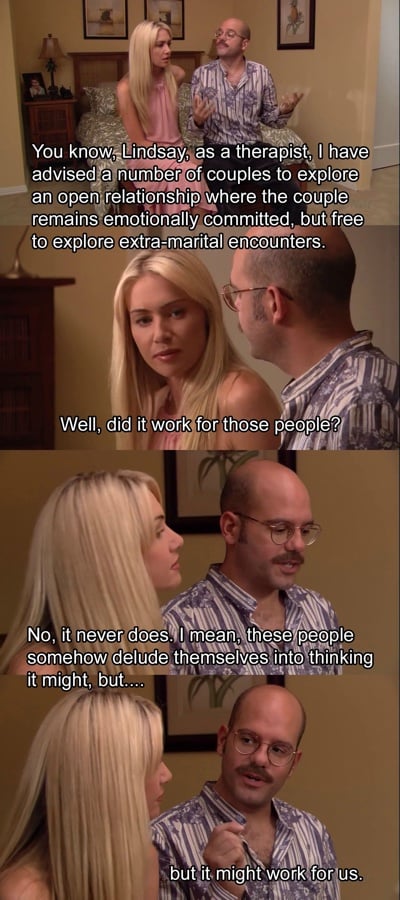
It might work for us

In just one of several historical examples of the time-saving delusion, John Maynard Keynes published an essay in 1930 called Economic Possibilities for our Grandchildren [PDF], in which he predicted that technological innovation will save people so much time that they won’t know what to do with themselves:

Thus for the first time since his creation man will be faced with his real, his permanent problem—how to use his freedom from pressing economic cares, how to occupy the leisure, which science and compound interest will have won for him, to live wisely and agreeably and well.

That, alas, has not happened. We are busier than ever these days. Instead of giving us more time, our technologies have instead given us more ways to be connected, to stay in touch with work, to never have to leave the office. I don’t see how one can argue that the Apple Watch will reverse this trend.

What the Apple Watch will do instead, I believe, is to accelerate a different trend, described by Douglas Rushkoff in Present Shock:

Our society has reoriented itself to the present moment. Everything is live, real time, and always-on. It’s not a mere speeding up, however much our lifestyles and technologies have accelerated the rate at which we attempt to do things. It’s more of a diminishment of anything that isn’t happening right now—and the onslaught of everything that supposedly is.

I’m not saying the Apple Watch won’t be wildly successful, or that I don’t want one — I definitely want one. I just don’t think we should fool ourselves into thinking it will somehow give us more time because we might look at our phones less. If history teaches us anything, it’s that we’ll find a way for the watch to fill up our “saved” time in other ways — and then some. And in doing so we’ll continue on the path Kevin Kelly lays out in his excellent book What Technology Wants:

Our lives today are strung with a profound and constant tension between the virtues of more technology and the personal necessity of less: Should I get my kid this gadget? Do I have time to master this labor-saving device? And more deeply: What is this technology taking over my life, anyway? What is this global force that elicits both our love and repulsion? How should we approach it? Can we resist it, or is each and every new technology inevitable? Does the relentless avalanche of new things deserve my support or my skepticism—and will my choice even matter?

That said, this post is only about the first version of the Apple Watch. The next watch is a different story. The next watch might be the one that finally saves us time. Just wait. You’ll see.

A technical guide to mobile usability testing

I wrote a guest post on mobile usability testing for my friends at Unboxed Consulting. It’s something I’ve mentioned briefly here on Elezea before, but in this post I go quite deep on the ins and outs of setting up a mobile usability lab. From A technical guide to mobile usability testing:

Setting aside the details of recruiting, script writing, and interviewing, from a technical perspective doing usability testing on desktop web applications is pretty simple, thanks to software like Morae and Silverback. There is, however, no straight-forward, single solution for doing usability testing on mobile devices. I recently went through the process of setting up our own mobile usability testing process at Jive, so I thought I’d share some of what we learned about the components of a good setup.

From iMessage to product management

Paul Ford wrote a great post about the significance of the blue/green bubbles in the Messages app on iOS. From It’s Kind of Cheesy Being Green:

This spontaneous anti-green-bubble brigade is an interesting example of how sometimes very subtle product decisions in technology influence the way culture works. Apple uses a soothing, on-brand blue for messages in its own texting platform, and a green akin to that of the Android robot logo for people texting from outside its ecosystem. […]

There are all sorts of reasons for them to use different colors. (iMessage texts are seen as data, not charged on a per-text basis, and so the different colors allow people to register how much a given conversation will cost—useful!) However, one result of that decision is that a goofy class war is playing out over digital bubble colors. Their decision has observable social consequences.

This then turns into a post about product management, in a way that only Ford can do. Great stuff.

The logistics of usability testing on mobile devices

I’m currently working on the design of a native app for Jive Software, and we really wanted to do some usability testing on a prototype before development starts. There are, of course, a multitude of reasons to do usability testing on prototypes, but we had some very specific issues we wanted to address:

  • We are a distributed team. Product Management is in Palo Alto, Product Design is in Portland, and Development will happen in our Tel Aviv office. So we knew from the beginning that a functional prototype would be essential to communicate within the team. Flat wireframes / PSDs just weren’t going to cut it.
  • We’re working on something in a fairly new market, so we need to do quite a bit of validation to make sure we get the utility of the app right.
  • And of course, our designs are never as good as we think they are, so we wanted to make sure we correct the majority of the usability issues before development starts.

I read a lot about prototyping native apps and mobile usability testing, and since everyone’s process is different, I wanted to give an overview of the process we settled on, since we’re really happy with it so far. It was very important to me that all our offices would be able to observe the usability tests, so that guided a lot of the decision-making. Here’s how we’re doing it…

Prototyping

After reviewing and trying out every prototyping tool known to man, I settled on Proto.io for this project. There are so many great options out there that it’s hard to go wrong on a choice of tool. Proto.io was the best for me because of a few key features:

  • I needed full interactivity — since we used the prototype for usability testing it needed to feel as real as possible.
  • I needed lots of flexibility in the animations/transitions supported, since we’re in new territory and need to try out lots of different things. Proto.io supports any interaction I threw at it.
  • I needed to use a mix of built-in components and my own assets, and Proto.io handles that pretty well.

Of course, I can’t show what the prototype looks like at the moment, but as soon as the app launches I’ll update the post and embed it here.

Mobile usability testing rig

I got lost in mobile usability testing guides for days — there are so many good ways to do it. At first we considered remote testing, but it just wasn’t a good option for us because we were going to do part IDI (in-depth interview) and part usability testing, so we needed a way to be in the room with users and dig deep into certain areas.

I’ve seen some crazy setups — my favorite and weirdest is probably MailChimp’s “hug your laptop” idea. It’s a brilliant hack, but I was worried our non-tech savvy users would have trouble with this, so I needed another solution.

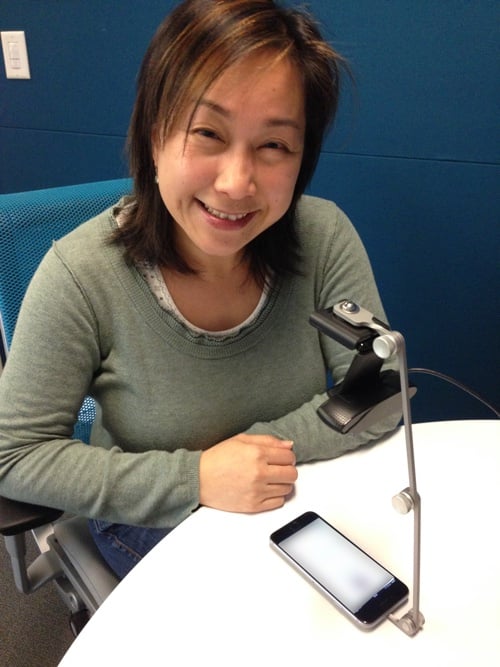
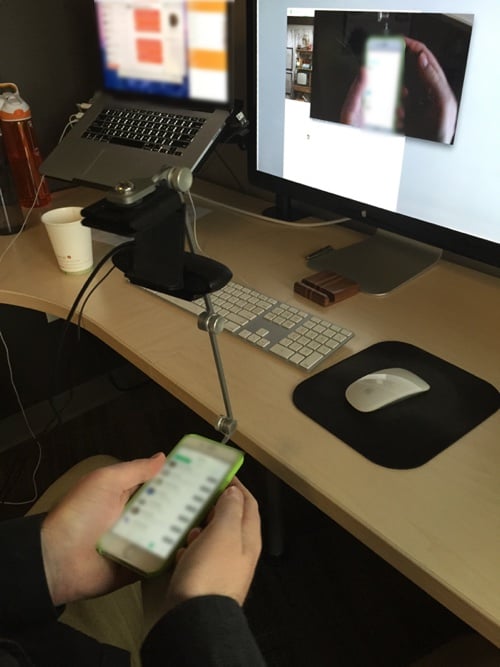
I ended up going with Bowmast’s Mr. Tappy kit, and I attached a Logitech HD Pro Webcam C920 to it. We played around with it in the office first to make sure it’s going to work:

With that out of the way, it was on to the next challenge — how to stream it everywhere.

Streaming to observation rooms

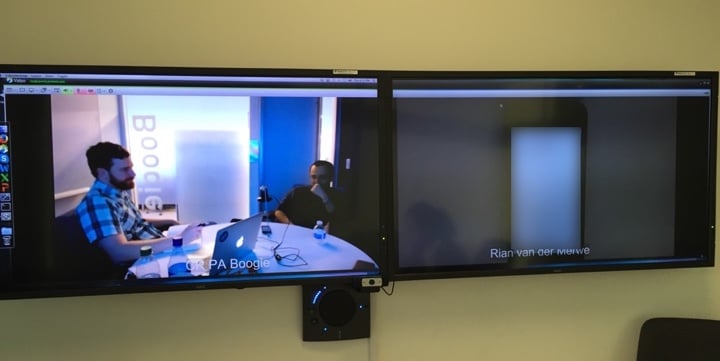
This part was much easier than I thought, simply because we already use Vidyo for videoconferencing in all our offices. So every time I started a usability test I would start my meeting in Vidyo, and then people from our other offices could dial into my meeting from their observation rooms. They could see the room on one screen, and the participant’s phone on another. It worked like magic:

What we ended up with is a setup where I can do usability testing in person on mobile devices, record the sessions, and have people observe these sessions from anywhere in the world. It was an incredibly productive few days, and I’m now working my way through fixing all the usability issues we picked up. Can’t wait to show this to you when it goes live!

Further reading:

QA in a post-QA world

There are a few controversial ideas in Benjamin Sandofsky’s You Can’t Go Home Again, in which he basically says that Agile methodologies shouldn’t be used in mobile app development. I did find this perspective on QA interesting in our increasingly post-QA world:

Sit down with a software engineer from anywhere but the web, and ask them about QA. Tell a game developer you don’t need it, they’ll tell you you’re nuts. Maybe these agile people have been burned by bad QA, but a great QA team is far from a bunch of monkeys clicking buttons all day.

Formal QA provides a counterpoint to “move fast and break things.” Their job isn’t to say, “No.” It’s perfectly fine to ship bugs– otherwise software would never ship. You need someone who is aware of all the bugs, and help you make the decision if the risk is worth it.

Also see Michael Lopp’s The QA Mindset for some really good perspective.

Using Mail.app as a replacement for Outlook for Mac

The biggest problem that many Mac users struggle with is that we work for organizations that use Exchange for email and calendar management. This means that, in most cases, we have to use Outlook for Mac if we want the majority of basic tasks to work. It’s an application that is so ugly and bug-ridden that most people look like this every time they open it:

Outlook

The problem is that traditionally it’s been pretty difficult to make OS X’s Mail.app play well enough with Exchange to be a viable replacement. For my personal use case there were a few things that always held me back:

  • The default view settings are not conducive to effectively manage a lot of email.
  • No keyboard shortcuts to move messages into folders.
  • All other email programs display the default system font when it receives an email generated in Mail.app — in Office for Windows this is Times New Roman.

I think I’ve finally addressed these issues enough to make Mail.app my primary mail application and ditch the horrors of Outlook. But you’ll need a few settings and plugins to get that done.

View options

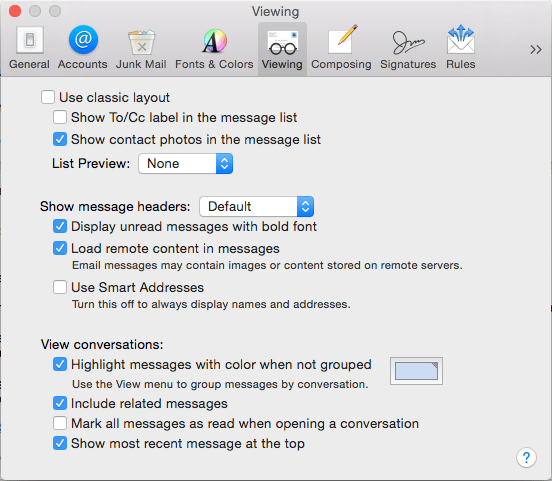
I like the simple, friendly list view that these options give me. Try it out:

View options

Shortcuts for moving messages

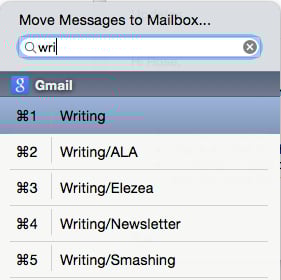
Mail Act-On 3 is an essential extension. It does a bunch of different things, but for the best feature is that you can map a key to moving messages to a different folder (I use “v” to match Gmail’s shortcuts), and then use type-ahead to pick the right folder:

Move messages

Changing the default font

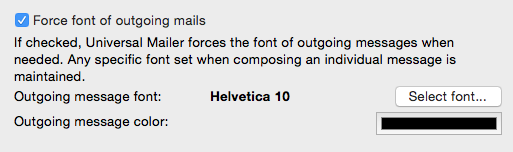
Universal Mailer is another powerful plugin that just makes Mail.app work better, but its best features is that you can set a system font that is respected by other email programs:

Force font

Unexpected bonus features

Switching to mail brings a bunch of great things with it that you don’t get in Outlook:

  • Smart folders that can bring a bunch of different emails together based on specific criteria you set.
  • Great integration with iOS, since it takes advantage of handoff.
  • Fast email that’s not ugly.

All I’m saying is, give it a try. Your eyes will thank you.

The new obsession: daily news apps

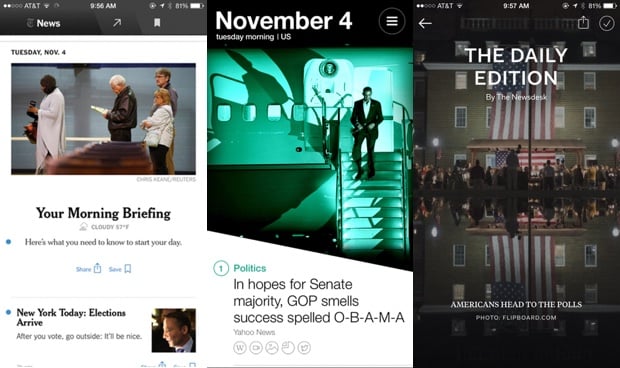
Daily

Apps that provide daily news summaries are the current rage. It appears that we’ve moved on from our Weather app and Messaging app obsessions. It’s a worthy goal, though. We’ve created so much noise on the Internet, we owe it to people to build tools to help them navigate all the noise we made. It’s the only viable solution.

Cynicism aside, though, I download all these apps and try them out. Sometimes they rotate on to my home screen for a while. Yahoo News Digest lasted a while. Everyone loves Circa so I tried that for a while, but it was still too much for me. The problem with the news is that it never ends — there are no edges — which is the reason these apps exist in the first place.

The one that I keep coming back to is NYT Now. I really, really love this app. The morning and afternoon briefings are succinct, and give me the sense that I got the day’s most important news. And I can dig deeper if I want to. It’s on my home screen and will probably stay there.

The latest entry to this market is Flipboard’s The Daily Edition. I use Flipboard every day (hey, you should subscribe to my Flipboard Magazine!), so it’s a natural extension and one less app to follow. My only problem with it so far is that I can’t remove sections I’m not interested in (Sports, ugh).

Anyway, the reason I write about this is that there’s something I don’t understand about this space. All these apps were built from the ground up to do some kind of human curation and give people a sense of the most important news of the day. But the two companies that have all the data in the world to make this happen — Facebook and Twitter — haven’t jumped in. I guess you could argue that Paper is Facebook’s attempt at this, but not really because they hedged their bets by making it a full-featured Facebook client anyway.

I don’t know if this is Innovator’s Dilllemma or what, but it seems like these two companies could make kick-ass daily news apps with data they already have at their disposal. Why haven’t they done this?